Dell Pro 14 vs Dell Pro 16: Portability or a Larger Screen?
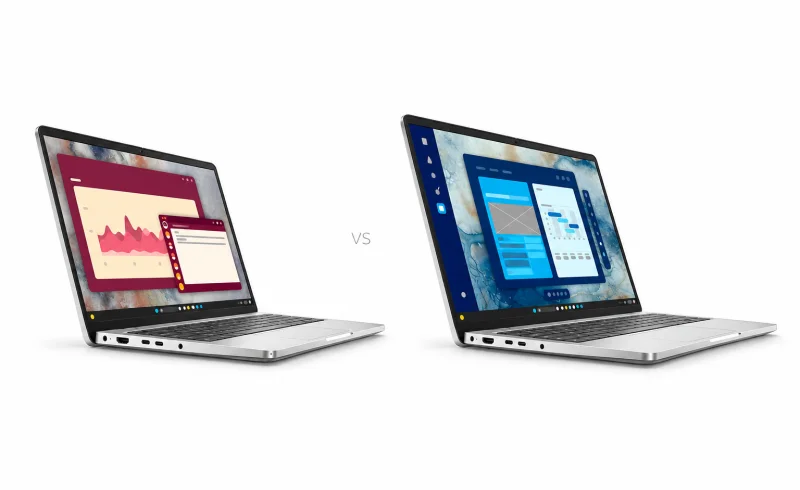
The Dell Pro 14 favors frequent carrying, while the Dell Pro 16 offers a larger image at the same scaling; panel and storage options can change the choice.
TL;DR
Choose the Dell Pro 14 for frequent carrying or the Pro 16 for larger text and spreadsheet cells at a desk. Both screens have 1920 × 1200 resolution, so at the same scaling, the 16-inch model makes content physically larger rather than showing more. The Pro 14 starts at 1.35 kg versus 1.92 kg for the Pro 16, though configuration affects weight.
The configuration can change the choice: for photo editing or design, the Pro 14’s optional 100% sRGB panel offers broader color coverage than the Pro 16’s listed panels. The Pro 16 instead offers optional dual SSD storage for separating projects onto another internal drive. Match processors and memory before comparing performance—the larger model is not automatically faster. Dell’s configuration guide details the options.
| Feature | Dell Pro 14 | Dell Pro 16 |
|---|---|---|
| Configurations and display | ||
| Processor options | Options include 13th-gen Core i3/i5, Core 3/5/7 and Core Ultra 5/7 [1]Availability varies by configuration. | Intel Core, Core Ultra Series 2 (U) or Processor U300E [1]Availability varies by configuration. |
| Memory, graphics and storage | 8–64 GB DDR5; configuration-dependent Intel graphics; 256 GB–2 TB SSD [1]Storage options vary by processor; 128 GB UFS is listed only for Magnetite chassis with U300E. | 8–64 GB DDR5; configuration-dependent Intel graphics; 256 GB–2 TB SSD [1]Storage options vary by processor; 128 GB UFS is limited to Magnetite/U300E. Optional dual storage uses two M.2 2230 SSDs. |
| Screen size and panel options | 14-inch IPS, 1920 × 1200, 60 Hz; 300/400 nits; touch or non-touch [1]Anti-glare; listed color-coverage options are 45% NTSC or 100% sRGB. | 16-inch IPS, 1920 × 1200, 60 Hz; 300/400 nits; touch or non-touch [1]All listed panels are 45% NTSC. Touch is 300 nits; non-touch anti-glare options are 300 or 400 nits. |
| Everyday carry and connections | ||
| Wired and wireless connections | Thunderbolt 4 + USB-C; 2× USB-A; HDMI 2.1; 1 GbE; Wi-Fi 6/6E/7 options [1]Wireless varies by configuration/location. 6E requires Windows 11 and a compatible router; 7 requires a certified driver, hardware update, supported OS and compatible router. | Thunderbolt 4 + USB-C; 2× USB-A; HDMI 2.1; 1 GbE; Wi-Fi 6/6E/7 options [1]Wireless varies by configuration/location. 6E requires Windows 11 and a compatible router; 7 requires a certified driver, hardware update, supported OS and compatible router. |
| Footprint, starting weight and battery options | 313.7 × 225.3 mm; starting at 1.35 kg; 45 or 55 Wh [1]Footprint is width × depth. Weight varies by configuration and manufacturing variability. | 358 × 251.82 mm; starting at 1.92 kg; 45 or 55 Wh [1]Footprint is width × depth. |
📑 Table of Contents
Choose the configuration for your workload
Choose the configuration before the screen size. Both the Pro 14 and Pro 16 offer Intel Core and Core Ultra options, so the larger model is not automatically the faster choice. Match the exact processor when comparing listings; availability varies by configuration.
For everyday browsing, documents and video calls, prioritize enough memory for the apps you keep open. Both offer 8, 16, 32 or 64 GB of DDR5 RAM, giving you the same capacity choices. For heavier multitasking, consider 16 or 32 GB rather than choosing by chassis size. Check the memory layout too: single- and dual-channel configurations vary. Dell’s configuration guide details these options; the Pro 14 review’s RAM and storage chapter (06:07) covers that configuration topic.
If you keep large photo collections or project files locally, both offer 256 GB–2 TB PCIe Gen4 SSD options, depending on processor configuration. The Pro 16 adds a practical reason to choose it: optional dual storage with two M.2 2230 SSDs, useful for keeping projects on a separate internal drive. Select that configuration explicitly rather than assuming every Pro 16 includes two drives.
A larger screen does not mean more pixels
Choose the Pro 16 if you want a larger built-in display for reading documents or working through spreadsheets at a desk. Its 16-inch screen gives content more physical room than the Pro 14’s 14-inch screen, but both have 1920 × 1200 resolution, a 16:10 aspect ratio and a 60 Hz refresh rate.
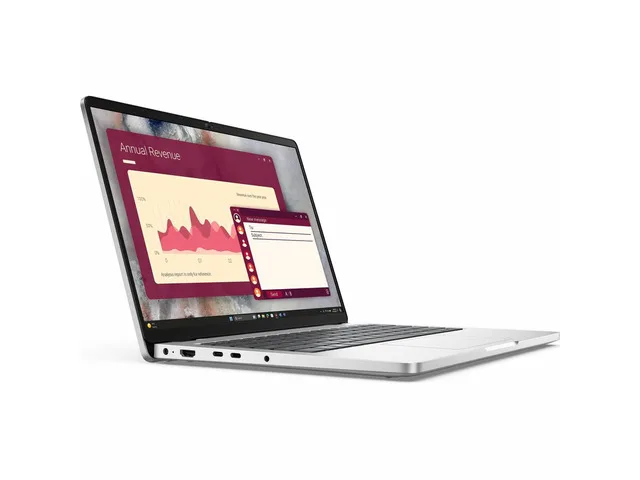
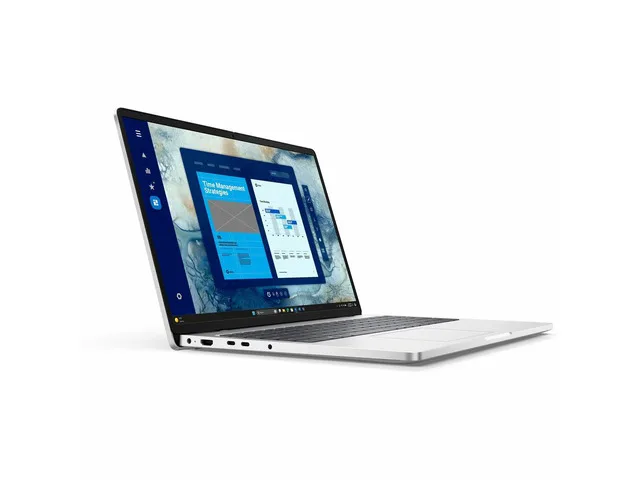
At the same display scaling, the Pro 16 makes text and cells physically larger rather than fitting more on screen. Choose the Pro 14 if you prefer a smaller display with the same pixel count; the Pro 16 favors easier reading over extra workspace.
Check the panel for color, brightness and touch
For photo editing or design work, choose the Pro 14’s 100% sRGB option rather than buying by screen size alone. Dell’s panel options include 45% NTSC or 100% sRGB coverage on the Pro 14; every listed Pro 16 panel is 45% NTSC. The wider-gamut Pro 14 is the better fit when reproducing a broader range of colors matters.
For working near a bright window, look for a 400-nit configuration, available on either model, rather than the 300-nit alternative. Both also offer touch options, but the Pro 16’s touch panel is limited to 300 nits and has no cover glass; its 400-nit option is non-touch. On the Pro 14, check the exact listing for your preferred combination of brightness, color coverage and touch.
Which fits your daily carry?
Choose the Pro 14 for frequent commuting or a smaller bag. Dell lists starting weights of 1.35 kg for the Pro 14 and 1.92 kg for the Pro 16—a 570 g difference before adding your charger and other essentials. Actual weight depends on configuration, so compare the versions you intend to buy.
The Pro 14 also takes up less bag space: its footprint is 313.70 × 225.3 mm, versus 358 × 251.82 mm for the Pro 16. Check your bag’s laptop compartment against those dimensions. If you carry your laptop between home and work every day, the Pro 14 is the more manageable choice.
Plan charging breaks around the battery option
Neither model offers a larger battery than the other: both have 45 Wh and 55 Wh options. If you often work away from a socket, prioritize the 55 Wh configuration over choosing by screen size. Battery capacity alone does not tell you which model lasts longer between charges.
For a quick top-up between tasks, Dell promises 35% charge in 20 minutes with ExpressCharge Boost, or 80% in 60 minutes and 100% in 120 minutes with ExpressCharge 1.0, on either model. These timings require the laptop to be shut down, so plan around a genuine work break rather than charging while answering emails. With either model’s 55 Wh battery, ExpressCharge Boost requires a 90 W adapter.
If you plan to keep the laptop for several years, both offer long-life-cycle batteries rated by Dell for three years or 1,000 discharge/charge cycles, with a three-year limited hardware warranty. Select that option explicitly.
Connect peripherals and check your desk setup
For a desk with a monitor, wired network, keyboard and mouse, either model offers the same useful connections. Both have HDMI 2.1, two USB-A ports, Gigabit Ethernet, a headset jack and two USB-C ports, one with Thunderbolt 4. Both USB-C ports support Power Delivery 3.1 and DisplayPort, so the Pro 16 adds no port advantage for this setup.
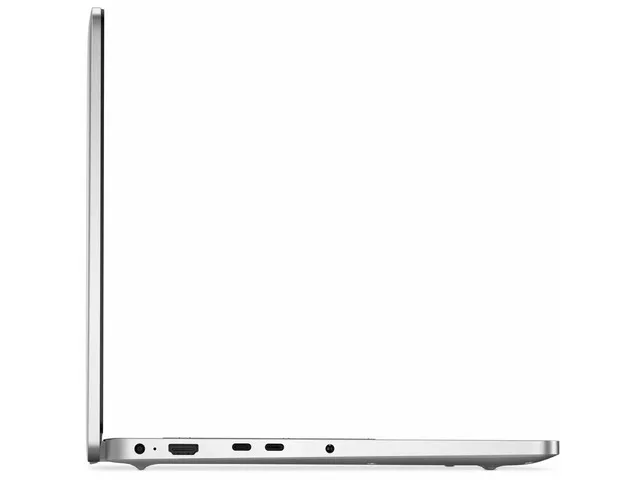
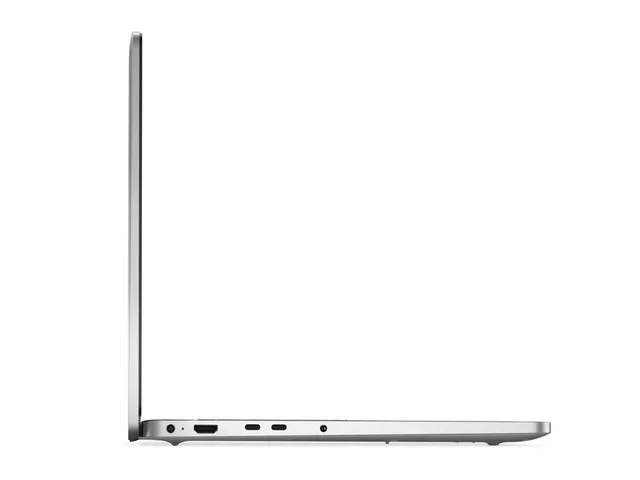
For one-cable docking, budget separately for a dock and check compatibility with your exact laptop configuration and intended monitors before choosing it.
Wireless also depends on configuration, not laptop size: both offer Wi-Fi 6, 6E or 7. Match the card to your home network rather than assuming every listing includes Wi-Fi 7. Wi-Fi 6E requires Windows 11 and a compatible router; Wi-Fi 7 requires a certified driver, hardware update, supported OS and compatible router. Both standards are available only in selected locations, and compatible routers are sold separately.
Final Verdict
Choose the Dell Pro 14 for frequent carrying: its smaller footprint and lower starting weight make it easier to pack. For broader color coverage, select its specific 100% sRGB panel option.
Choose the Dell Pro 16 for a larger built-in image—not extra workspace at the same display scaling—or its optional dual-SSD configuration. Choose processor and battery options separately rather than assuming either size delivers faster computing or longer runtime. If reusing a multi-monitor dock is decisive, compatibility with your exact configuration and monitors still needs checking.
FAQ
Can I buy less RAM now and upgrade it later?
Can I add a second SSD to a single-drive Pro 16 later?
Will the included charger let me use ExpressCharge Boost with the 55 Wh battery?
📄 Sources & Documentation
"Images are used for editorial and informational purposes only. All trademarks and images belong to their respective owners."