
Wacom Intuos Small Bluetooth vs Huion Inspiroy H640P
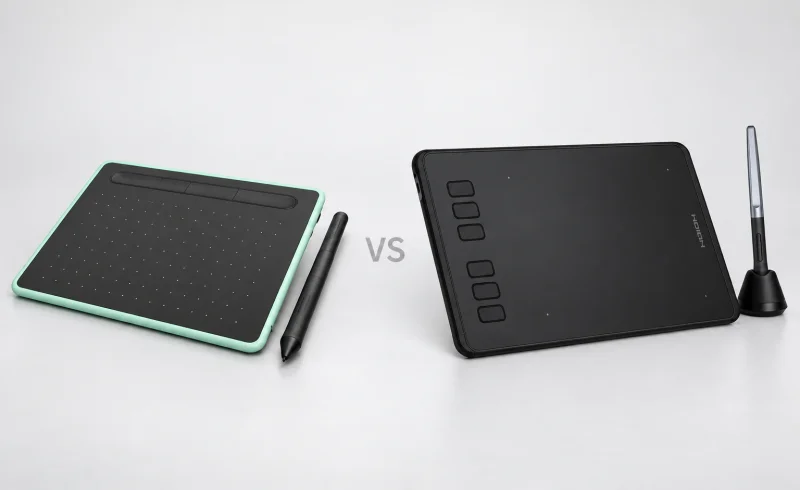
Wacom Intuos Small Bluetooth suits Bluetooth Classic wireless setups; Huion Inspiroy H640P offers six shortcut keys and a slightly larger drawing area.
TL;DR
The biggest difference between the Wacom Intuos Small Bluetooth and the Huion Inspiroy H640P isn't pressure sensitivity. It's how each tablet fits into your workspace.
The Wacom Intuos Small Bluetooth is narrower, supports wireless use, and can switch to USB when needed. It makes more sense for a crowded desk or a setup where the tablet regularly moves out of the way.
The Huion Inspiroy H640P is a wired alternative with six programmable buttons instead of four, a slightly larger drawing surface, and a shallower body. It also has official Ubuntu driver support, which may settle the decision for Linux users.
Both are small, screenless drawing tablets. You move the pen across the tablet while watching the result on your computer's display. Neither supports pen tilt, and Huion's 8,192 pressure levels versus Wacom's 4,096 don't automatically translate into better lines.
| Feature | Huion Inspiroy H640P | Wacom Intuos Small Bluetooth |
|---|---|---|
| Connections and workflow | ||
| Connection options | USB via Micro USB [1] [2] | Bluetooth Classic or USB [3] [4] [5]Bluetooth model: rated operation ≥15 hours; charging up to 3.5 hours. Built-in tablet battery is non-replaceable. |
| Customizable shortcuts | 6 programmable tablet keys with disable switch; 2 customizable pen buttons [6] [1] [2]Huion's version 14 and 15 driver instructions support application-specific tablet-key and pen-button assignments. | 4 application-specific ExpressKeys; 2 customizable pen buttons [5]ExpressKeys support is listed for Windows PC and Mac. |
| Android, ChromeOS and Linux options | Android 6.0+ and Linux listed [1] | Android 6.0+ with OTG; latest ChromeOS listed [5] |
| Pen input and tablet size | ||
| Pressure sensitivity | 8,192 pressure levels [1] | 4,096 pressure levels [5] |
| Tablet body dimensions | 260 × 147.7 × 8 mm [1] [2] | 200 × 160 × 8.8 mm [5]Approximate dimensions. |
| Reported drawing responsiveness | Review reported occasional stroke-start delay, but no noticeable lag during strokes [2]BestReviews testing in Photoshop and Clip Studio Paint; review updated June 2024. | Some customers reported Bluetooth lag and pen-sensitivity concerns [7]Attribution: Best Buy customer-feedback summary. |
📑 Table of Contents
- What drawing on either tablet actually feels like
- Drawing space versus desk space
- Bluetooth freedom versus the simplicity of USB
- Pen pressure: why 8,192 isn't automatically better than 4,096
- Shortcut keys: four at the top or six at the side
- Computer and Android compatibility can decide the comparison
- Pens, replacement nibs, and everyday upkeep
- Final Verdict
- FAQ
What drawing on either tablet actually feels like
If you're moving from a mouse to a drawing tablet, the adjustment is similar with either model. Your hand moves across a plastic surface on the desk, but your eyes stay on the monitor. You're not drawing directly onto a screen.
That separation takes some practice. It can feel especially unfamiliar when writing small letters, tracing precise shapes, or moving between two monitors.
Both tablets use absolute pen positioning: a particular point on the drawing surface corresponds to a point on your display. You can move the cursor across the screen without repeatedly lifting and repositioning the pen as you would a mouse.
The small active areas make that efficient for photo retouching, signatures, annotations, and occasional illustration. But they also mean less physical room for broad, sweeping strokes. Someone accustomed to drawing with their whole forearm may find either tablet restrictive.
On a large or multi-monitor desktop, the mapping settings matter. You can adjust which screen or portion of the display responds to the pen. Limiting the mapping to one monitor, rather than stretching it across an entire multi-screen workspace, can make small movements easier to control.
Neither tablet supports finger-based multi-touch gestures. Zooming, panning, and rotating a canvas depend on software commands, keyboard shortcuts, or the pen and tablet buttons.
Drawing space versus desk space
The surprising part of this comparison is how little additional drawing room you get from Huion's substantially wider body.
According to the manufacturers' specifications:
- Wacom Intuos Small Bluetooth: 200 × 160 mm overall, with a 152 × 95 mm active area.
- Huion Inspiroy H640P: 260 × 147.7 mm overall, with a 160 × 100 mm active area.
The H640P occupies 60 mm more desk width but provides only 8 mm more usable pen travel horizontally and 5 mm vertically. Its active area is roughly 11% larger.
That small difference may be welcome when sketching, but it doesn't transform the drawing experience. Both remain firmly in the compact-tablet category.
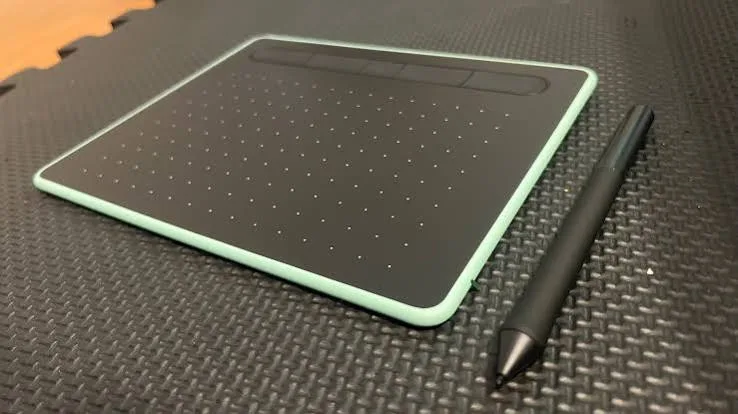
Desk layout makes the more meaningful difference.
With a keyboard directly in front of your monitor and a mouse to one side, Wacom's narrower body leaves more horizontal room. Huion's wider layout is less convenient in that arrangement, although its shallower shape takes up slightly less space between you and the monitor.
The shortcut placement is different, too. Wacom puts its four ExpressKeys along the upper edge. Huion places six buttons down one side, where they can be reached by the other hand.
Neither arrangement is inherently more comfortable. It depends on how the tablet sits alongside your keyboard and which hand you use for shortcuts.

Wacom also weighs approximately 250 g against Huion's 277 g. The difference is unlikely to matter much inside a laptop bag. The shape and available desk space are more important.
Bluetooth freedom versus the simplicity of USB
Wacom's wireless connection is its clearest functional advantage.
The Intuos Small Bluetooth, model CTL-4100WL, connects to compatible computers using Bluetooth Classic. It also supports a wired USB connection, so the tablet doesn't become unusable when its battery runs low.
After pairing, connecting or disconnecting the USB cable switches between wired and Bluetooth operation.
This flexibility is particularly useful with a laptop. You can reposition the tablet without dragging a cable across the keyboard, then return to USB when working at a fixed desk.
But wireless convenience comes with a potential compromise.
Wacom acknowledges that Bluetooth connections can experience lag or interruptions, depending on interference, signal conditions, and the computer's Bluetooth hardware.
That doesn't mean wireless drawing is necessarily sluggish. It means Bluetooth adds another variable to the experience. If the cursor begins hesitating or strokes become inconsistent, the wired connection provides a straightforward way to eliminate wireless interference as a possible cause.
Huion's H640P avoids that variable by using USB exclusively. There is no wireless pairing process and no tablet battery to manage. The cable stays connected throughout use.
Both models use Micro-USB connectors on the tablet rather than USB-C. On a laptop with only USB-C ports, the cable arrangement may require a suitable adapter or hub.
Battery life and charging
Wacom rates the Bluetooth Intuos at a minimum of 15 hours of continuous operation, with charging taking up to 3.5 hours. These are manufacturer specifications, not independently established results for every workload.
The tablet contains a built-in, non-user-replaceable lithium-ion battery. That's worth remembering for long-term use: battery aging may eventually reduce the convenience that distinguishes the wireless model.
Neither stylus needs charging. Both use electromagnetic resonance technology, so the distinction concerns the tablet connection, not the pen itself.
Pen pressure: why 8,192 isn't automatically better than 4,096
On paper, Huion has an obvious numerical advantage.
The H640P supports 8,192 pressure levels, while the Wacom Intuos Small Bluetooth supports 4,096.
Pressure sensitivity lets compatible software change a brush's width, opacity, or another characteristic according to how firmly you press.
More reported levels provide finer numerical divisions of pressure. They do not, by themselves, establish whether a pen feels more natural or produces more consistent strokes.
For actual drawing, several behaviors matter more:
A light sketching stroke needs to register without excessive pressure. A slow increase in force should produce a predictable change in line weight. When repeatedly lifting and lowering the pen, short marks should begin where intended.
These behaviors depend on the pen, tablet firmware, driver, pressure curve, and drawing application—not simply the number of pressure levels.
Huion also specifies a higher pen reporting rate, 233 points per second compared with Wacom's 133. That describes how frequently input positions are reported, not the complete delay between moving the pen and seeing the result on screen.
What independent testing tells us
There is a useful caution in the H640P's history.
Early reviews identified issues with uneven pressure transitions and line quality on some units. A detailed 2019 H640P follow-up review reported that a firmware update had corrected the problems encountered in the reviewer's earlier testing.
Separately, BestReviews reported occasional hesitation at the beginning of new strokes, despite observing no noticeable lag during continuous lines.
Those observations are not a controlled comparison against the Wacom, and they don't establish that every H640P behaves identically. They do show why firmware and actual stroke behavior deserve more attention than pressure-level counts.
For handwriting, short hatching marks, or detailed line art, neither tablet has a conclusively demonstrated advantage. Repeated light strokes and quick pen lifts are more revealing than a specification sheet.
Neither tablet supports pen tilt
This is another important limitation that the pressure numbers can obscure.
Although Huion's PW100 pen is used with some devices that support tilt, the H640P itself does not provide that function. Wacom's Pen 4K on the Intuos Small also lacks tilt recognition.
Pressure-sensitive brushwork remains possible, but brushes that depend on the angle of the pen cannot receive actual tilt information from either tablet.
For artwork that relies heavily on the changing angle of a pencil, charcoal tool, or broad brush, that limitation matters more than the difference between 4,096 and 8,192 pressure levels.
Shortcut keys: four at the top or six at the side
Once pen movement becomes familiar, the next interruption is often reaching for the keyboard.
Undo, brush size, eraser selection, zoom, and canvas movement are commands that can repeatedly break the rhythm of drawing.
The H640P provides six programmable physical keys. That gives you room to keep more frequently used commands directly on the tablet.
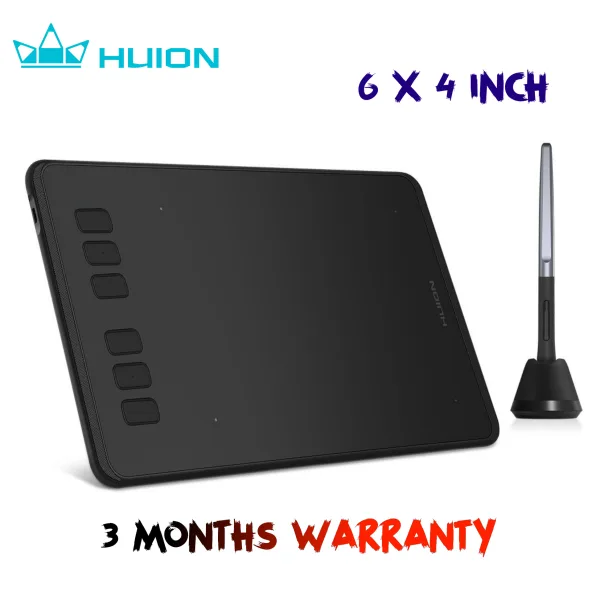
Huion also includes a physical shortcut-disable switch. It's useful when the tablet is being repositioned or when accidental button presses interrupt your work.
Wacom has four ExpressKeys, but their placement along the upper edge keeps the side of the tablet clear. Those four keys may be sufficient when the keyboard is already close at hand.
Both pens also have two side buttons, allowing common commands to remain accessible without moving your other hand.
On supported Windows and macOS systems, both manufacturers provide software for customizing shortcuts by application. A command used for brush control in a drawing program can serve a different purpose in an image editor.
Wacom additionally provides a radial menu, on-screen keypad, and display-toggle functionality through its software. Huion's driver settings offer customizable working areas, screen selection, and shortcut configuration.
The practical difference isn't simply six keys versus four. It's whether you prefer a greater number of immediately accessible physical commands or a smaller tablet supplemented by software controls.
These capabilities also depend on the operating system. In particular, Wacom's ExpressKeys are not supported on ChromeOS.
Computer and Android compatibility can decide the comparison
Both models support Windows and macOS, but the differences become more significant with Linux, Chromebooks, and Android devices.
Windows and Mac
Both manufacturers list Windows 7 or later in their product requirements. Wacom specifically excludes Windows 10 S.
For macOS, Huion's H640P product specifications list macOS 10.12 or later, while Wacom's current Intuos product page lists macOS 10.15 or later.
These minimums shouldn't be interpreted as a guarantee that the newest driver works on every older operating system. For example, Wacom states that macOS 10.15 requires an older driver release, since current releases no longer support Catalina.
On an older Mac, the exact driver version matters as much as the tablet's advertised system requirements.
Linux: Huion has an official driver
The H640P is listed among the devices supported by Huion's Linux driver.
There is an important qualification: Huion's official Linux support is limited to Ubuntu. Its general compatibility listing shouldn't be taken as a promise of equivalent manufacturer support for every Linux distribution.
Wacom does not advertise Linux as an officially supported operating system for this Intuos model. Community-maintained Linux tablet drivers exist, but that is different from having a manufacturer-supported configuration.
For an Ubuntu workstation, Huion therefore has a clearer documented support path.
ChromeOS: Wacom has support, with limitations
Wacom confirms that the Bluetooth Intuos models can work with compatible Chromebooks running ChromeOS 87 or later and an appropriate kernel.
There is no conventional Wacom desktop driver installation on ChromeOS. Pen features depend on the system and application.
Most notably, Wacom says its ExpressKeys do not work on ChromeOS.
That changes the comparison considerably if shortcut buttons are important to your workflow. A Wacom connected to a Chromebook should not be expected to provide the same four-key customization available on Windows or Mac.
Huion does not list ChromeOS compatibility for the H640P.
Android: both work differently than on a computer
Both tablets advertise Android compatibility, but connecting to a phone does not necessarily preserve the full desktop drawing experience.
Huion supports Android 6.0 or later through a compatible USB OTG connection. Its H640P has a dedicated phone mode, and Huion specifies a 62.5 × 100 mm working area in that mode—much smaller than the full computer working area.
Wacom supports compatible Android devices over USB with an OTG adapter. It also documents Bluetooth connectivity on Android 14 or later with suitable Bluetooth hardware. That Android guidance is separate from the Bluetooth Classic requirement stated for computer connections.
Android screen orientation also affects usable tablet space. Wacom explains that portrait orientation uses only part of the Intuos drawing area, while more of the surface can be available in landscape on newer Android versions.
For occasional phone annotation, these limitations may be manageable. For extended illustration sessions, the reduced working area, app compatibility, and connection requirements deserve careful attention.
Pens, replacement nibs, and everyday upkeep
Neither pen has an internal battery to recharge, but both use replaceable nibs that gradually wear with use.
Wacom's Pen 4K stores three spare standard nibs inside the pen barrel, with a removal tool built into the opposite end. Compatible replacements include standard, felt, and flex nibs. The pen's replacement model is LP-1100K.
Huion's H640P uses the PW100 pen. Its PH03 holder serves as both a resting place for the pen and storage for spare nibs, with a built-in nib extractor.
The difference is mostly one of convenience. Wacom keeps its spare nibs with the pen, while Huion uses a separate desk accessory.
For both tablets, replacement components need to match the specific pen model. A shared pressure rating or similar appearance does not make nibs and pens interchangeable between devices.
The connection hardware is another long-term consideration. Both tablets use Micro-USB ports, so their cables and connectors warrant reasonable care, particularly if the tablet is frequently packed away and reconnected.
Final Verdict
The Wacom Intuos Small Bluetooth makes more sense when horizontal desk space is limited or the tablet regularly moves between positions. Bluetooth reduces cable clutter, while USB remains available when a stable wired connection is preferable. Its four ExpressKeys and software controls are sufficient for many drawing and editing workflows.
The Huion Inspiroy H640P has a stronger case for a fixed USB workspace, particularly when six physical shortcuts are useful or official Ubuntu driver support is required. Its drawing surface is slightly larger and its body is shallower, although the wider footprint needs more room beside a keyboard.
Neither model has a demonstrated universal advantage in handwriting or delicate short strokes. The difference in advertised pressure levels is less informative than the response of the pen in the actual application.
For larger drawings, extensive arm movement, or tilt-sensitive brush techniques, the more important question may be whether either small tablet provides enough working area and pen functionality in the first place.