
Google Nest Audio vs Apple HomePod (2nd Generation): Which Fits Your Home?
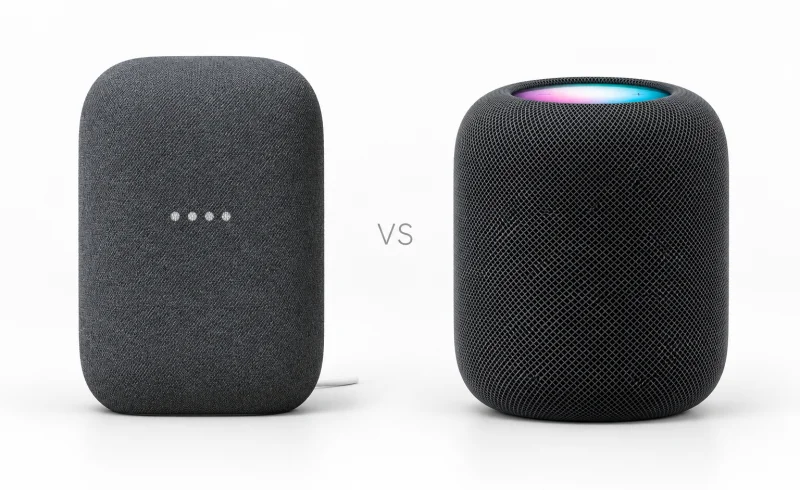
Nest Audio suits Bluetooth and Chromecast listening, while Apple HomePod (2nd generation) fits Apple households and requires a supported iPhone or iPad and Wi-Fi internet for setup.
TL;DR
The biggest difference between Google Nest Audio and Apple's second-generation HomePod isn't the sound. It's what happens when you reach for your phone and try to play something.
Nest Audio is easier to live with if you use Android, Google Cast, or Bluetooth audio. It also works with Cast-enabled apps on an iPhone, offers adjustable bass and treble, and fits naturally into a Google Home setup. HomePod makes more sense in an Apple household, particularly if you use AirPlay, Apple Music, Apple TV 4K, or accessories managed through the Apple Home app.
HomePod offers more substantial bass, automatic room tuning, and Spatial Audio with compatible content. Nest Audio delivers clear vocals and a straightforward listening experience but has less low-frequency impact. Neither is a portable speaker, and neither has an auxiliary audio input.
There is one immediate compatibility check: HomePod requires a supported iPhone or iPad for setup. An Android phone or a Mac alone won't do it.
| Feature | Google Nest Audio | Apple HomePod (2nd generation) |
|---|---|---|
| Sound | ||
| Clarity and bass | Clear voices and lead instruments; little low-bass and slightly recessed, uneven treble. Bass and treble are adjustable. [1]RTINGS (2023); tonal description is out of the box. | Reviewer heard noticeable bass rumble and clear vocals and instruments. [2]SoundGuys (2023), software 16.3.2. |
| Volume and room suitability | Some compression at maximum volume; best suited to smaller rooms. [1]RTINGS (2023). | Reviewer found output sufficient for most rooms or small parties, but subtle details could get lost in busy tracks at high volume. [2]SoundGuys (2023), software 16.3.2. |
| Everyday use | ||
| Voice control | Google Assistant; review found good distant command pickup, with difficulty in noisy environments. [1]RTINGS (2023). | Siri; reviewer reported reliable command pickup during music and podcast playback. [3] [2] [4]Pickup: SoundGuys (2023), software 16.3.2. Siri features vary by language and region. |
| On-speaker controls | Playback and volume touch controls; rear physical microphone switch with orange lights when off. [5] [6]With the microphone off, the assistant cannot listen or interact. | Touch controls for playback, track skipping and volume; touch and hold to invoke Siri. [7] |
| Wireless playback and speaker grouping | Bluetooth or Wi-Fi/Cast playback; two Nest Audios in the same room can stereo-pair, and pairs can join speaker groups. [1] [8]RTINGS (2023) reported phone-video sync could vary by app. | AirPlay from iPhone, iPad, Apple TV or Mac; two matching HomePods in the same room can stereo-pair, with multi-room playback also supported. [7] [9] [3] |
📑 Table of Contents
Streaming and setup: The difference you'll notice first
Imagine someone hands you their phone and asks to play a song. With Nest Audio, they can connect through Bluetooth or use the Cast button in a compatible music app. With HomePod, playback generally goes through AirPlay or a service integrated with HomePod.
That distinction affects daily use far more than the Bluetooth version printed on a specification sheet.
Nest Audio: Bluetooth plus Google Cast
Nest Audio can receive audio from Android phones, iPhones, tablets, and computers over Bluetooth. Once paired, it can play podcasts, music, audiobooks, and other audio from the connected device.
Google Cast provides another route. Open a compatible app, select the Nest Audio speaker, and start playback. Unlike conventional Bluetooth streaming, Cast-enabled services can hand off playback to the speaker over Wi-Fi, so the phone generally acts as the controller rather than continuously transmitting the audio.
Google explains both methods in its guides to Bluetooth playback and casting from compatible apps.
Initial configuration still requires the Google Home app, a Google Account, a compatible Android or iOS device, and a home Wi-Fi network. Bluetooth support doesn't turn Nest Audio into a completely independent, offline portable speaker.
HomePod: AirPlay and Apple device integration
HomePod takes a different approach. It supports AirPlay audio from an iPhone, iPad, Mac, or Apple TV. You can send music directly from a compatible app, select HomePod as an audio destination, or use Siri with supported music services.
Apple also provides a convenient interaction for iPhone owners: bring a compatible iPhone close to HomePod to transfer supported audio between the devices. It's useful when a podcast started on your phone should continue in the kitchen without navigating another menu.
That feature requires the appropriate Wi-Fi, Bluetooth, account, and transfer settings.
The limitation is equally important: although HomePod's specifications list Bluetooth 5.0, it does not function as an ordinary Bluetooth audio receiver. You cannot simply pair an Android phone or Windows laptop with it for music playback the way you can with Nest Audio.
HomePod also needs a supported iPhone or iPad for initial setup. Apple's setup instructions explicitly rule out using a Mac for that task.
Your music service matters, too
HomePod has particularly direct integration with Apple Music and Apple Podcasts. Third-party services may support HomePod through their own integrations, but availability and Siri functionality vary. A service that plays through AirPlay isn't necessarily available for standalone voice requests on HomePod.
Nest Audio supports compatible services through Google Home and Google Cast, with Bluetooth providing an alternative when an app lacks Cast integration.
For either speaker, check how your preferred service handles playlists, voice requests, and playback without the phone nearby. Being able to stream a track and being able to request that same track hands-free are not always equivalent.
Sound quality: Clear vocals or fuller bass?
Both speakers are designed for everyday indoor listening, but they emphasize different strengths.
Nest Audio is appealing for podcasts, audiobooks, acoustic music, and ordinary background listening. HomePod gives music more low-end weight and offers automatic adjustments based on the acoustics of its surroundings.
Neither, however, should be mistaken for a dedicated subwoofer or a large stereo system.
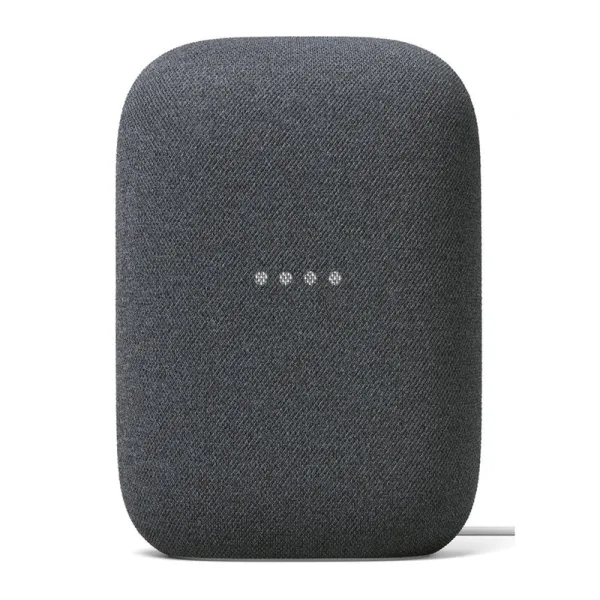
Nest Audio: Strong midrange, limited deep bass
In RTINGS' Nest Audio testing, voices and lead instruments came through clearly thanks to a relatively balanced midrange. The treble was less consistent, giving some recordings a slightly subdued character.
That balance works for spoken-word content and music at moderate levels. You can follow a conversation in a podcast without the bass dominating the voices.
Music that relies on very deep bass is a different matter. Nest Audio doesn't reproduce the lowest frequencies with much authority, and its output becomes more compressed as the volume approaches maximum.
The Google Home app provides separate bass and treble adjustments. They can make the presentation more comfortable for your preferences, but increasing bass doesn't create low-frequency output beyond the speaker's physical limits.
For a bedroom, kitchen, or modest living room, these compromises may be relatively minor. In a large open-plan room, the limitations become more apparent as listening distance and background noise increase.
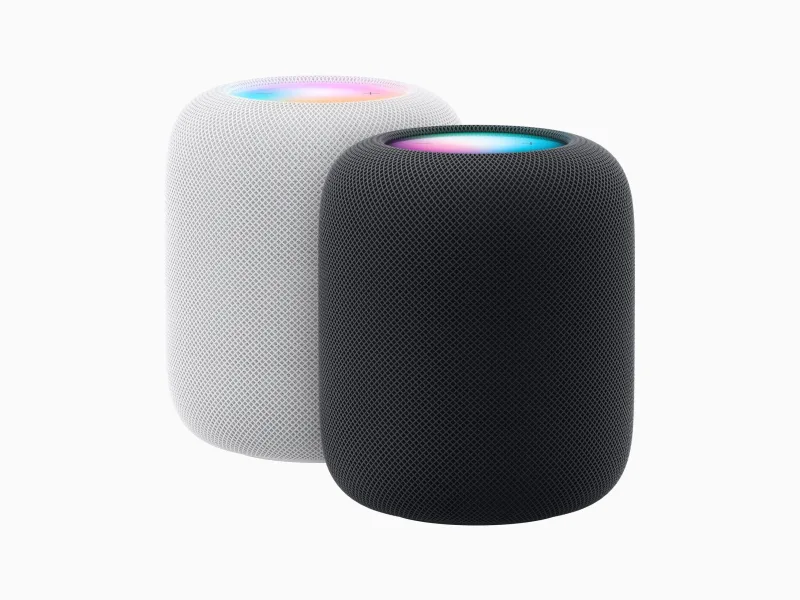
HomePod: More bass presence and automatic room tuning
HomePod uses a four-inch woofer, five tweeters, and internal microphones to help manage its acoustic output. Apple's room-sensing system adjusts sound based on the reflections it detects around the speaker.
The practical benefit is that HomePod can adapt its response when placed on different surfaces or in different parts of a room. It doesn't eliminate the need for sensible placement, but it reduces the reliance on manual sound adjustments.
Independent assessments provide a useful sense of its limits. SoundGuys reported noticeable bass rumble, clear vocals, and enough volume for ordinary rooms and small gatherings. At higher levels, subtler parts of busy recordings could become less distinct.
RTINGS' HomePod assessment was more reserved about the deepest bass, finding that the speaker still lacked the room-shaking impact of a more capable low-frequency system.
Those observations aren't necessarily contradictory. A speaker can give kick drums and bass lines satisfying weight without reproducing the lowest sub-bass frequencies.
HomePod also supports Spatial Audio with Dolby Atmos for compatible music and video. On supported recordings, it can create a more expansive presentation than conventional single-speaker playback, although the effect depends on the content and listening conditions.
One trade-off: HomePod doesn't offer the same independent bass and treble sliders available on Nest Audio. Its sound is shaped primarily by Apple's processing, with more limited user adjustments.
Placement and everyday volume
Both models need continuous mains power. Neither can follow you into the garden without a suitable electrical outlet.
Keep Nest Audio oriented toward the main listening area, with enough open space around it to avoid muffling its output.
HomePod's room sensing provides greater flexibility, but Apple still recommends placing it on a solid surface with adequate clearance. Enclosing it tightly in a cabinet won't help its sound.
For quiet evening listening, either speaker can reproduce dialogue and music effectively. If you regularly turn music up across a busy living room, HomePod's fuller presentation may be more appealing, though neither is designed to replace a large high-output sound system.
Stereo pairs, multi-room music, and TV audio
A single smart speaker is convenient, but it cannot provide the same physical left-to-right separation as two speakers placed apart.
Both Nest Audio and HomePod support stereo pairing. Their requirements and television integrations, however, are different.
Two speakers in one room
Google allows two matching Nest Audio speakers to operate as a left/right stereo pair. Google recommends placing paired speakers roughly four to eight feet apart on stable surfaces.
Apple similarly supports pairing two second-generation HomePods. A first-generation HomePod or a HomePod mini cannot be mixed into that stereo pair.
With a pair, instruments and vocals can occupy different positions between the speakers rather than appearing to come from one location. This is especially noticeable when you're seated between them.
The improvement depends on spacing. Two speakers positioned directly beside each other offer much less stereo separation than a properly spaced pair.
Music throughout the house
Nest Audio works with Google Home speaker groups, allowing compatible Google speakers, displays, and streaming devices to play synchronized audio across rooms.
HomePod uses AirPlay-based multi-room playback. A second-generation HomePod and HomePod mini can participate in the same multi-room setup even though they cannot form a mixed stereo pair.
That makes existing equipment relevant. If you already have Google speakers in several rooms, another Nest Audio can join that system. If your home uses AirPlay speakers, HomePod fits the existing arrangement.
Matter compatibility doesn't make Google Cast and AirPlay speaker groups interchangeable. Smart-home device interoperability and synchronized music playback are separate technologies.
Watching television is a different requirement
This is an important HomePod advantage for Apple TV users.
With a compatible Apple TV 4K, HomePod can be configured as the default television audio output. One HomePod or a stereo pair can reproduce TV audio, with supported home-theater formats including Dolby Atmos.
With appropriate Apple TV hardware and an ARC- or eARC-compatible television, audio from other television-connected devices may also be routed through the HomePod setup. Apple explains the hardware and setup requirements in its Apple TV audio guide.
Nest Audio's Google Cast support should not be confused with equivalent television-speaker functionality. Streaming music to Nest Audio from an app doesn't mean it can automatically replace the speakers connected to a Chromecast or Google TV.
Neither device is an ideal substitute for a wired, low-latency computer speaker. RTINGS observed synchronization problems when sending video audio to Nest Audio, while SoundGuys reported noticeable delays using HomePod over AirPlay with Mac video playback.
If watching television is a primary use, HomePod's dedicated Apple TV integration is more relevant than either speaker's ordinary phone-to-speaker streaming features.
Smart-home control: Both support Matter, but Thread changes the equation
It's easy to assume HomePod is the smart-home hub and Nest Audio is merely a voice-controlled speaker. That's incorrect.
Both can help control compatible Matter devices. The meaningful differences involve the ecosystem, supported accessories, and the type of network each speaker can support on its own.
Google Home and Nest Audio
Nest Audio operates as a Matter controller within Google Home. It can help control compatible Matter-over-Wi-Fi devices, alongside accessories integrated through Google Home.
For example, a supported smart plug or light can respond to a voice request or participate in a Google Home automation.
There is an important distinction for Thread devices, such as certain low-power sensors and smart locks.
Nest Audio is not itself a Thread border router. A Matter-over-Thread accessory requires a compatible border router elsewhere in the network, such as a Nest Hub (2nd generation), Nest Hub Max, or Nest Wifi Pro.
Google identifies the roles of its supported devices in its Matter implementation overview.
If your existing smart-home equipment already provides Thread connectivity, Nest Audio's limitation may have little practical effect. If it doesn't, the speaker alone won't supply that missing network connection.
Apple Home and HomePod
The second-generation HomePod serves as an Apple home hub and includes Thread networking support. It can work with compatible HomeKit and Matter accessories configured through the Apple Home app.
That gives it a practical advantage when setting up compatible Thread-based accessories without an additional Thread border router. Apple's technical specifications confirm this capability.
HomePod also includes temperature and humidity sensors. These can provide readings in the Home app and serve as triggers for automations.
A routine could, for example, respond to a room becoming unusually warm by controlling a compatible fan or thermostat.
There are limitations. Apple says the sensing system is optimized for indoor temperatures of approximately 59–86°F (15–30°C) and relative humidity of 30–70%. Prolonged high-volume playback can reduce measurement accuracy, and the sensors need time to calibrate after startup.
HomePod also supports recognition of certain smoke and carbon monoxide alarm sounds, with notifications available when configured appropriately. This is supplementary monitoring, not a substitute for functioning safety alarms.
Nest Audio does not provide an equivalent built-in room temperature and humidity sensing feature.
Matter doesn't erase ecosystem differences
A Matter logo is useful, but it doesn't guarantee identical functionality in Google Home and Apple Home.
Supported device categories, advanced settings, automations, and manufacturer-specific features may differ between platforms.
Before relying on either speaker as the center of a connected home, confirm that your particular lights, locks, thermostats, sensors, and other accessories support the platform and functions you need.
HomePod's Thread support is a meaningful hardware distinction. It doesn't automatically make every smart-home accessory more capable in Apple Home.
Voice assistants, shared households, and privacy
A smart speaker spends plenty of time doing things other than playing music: setting timers, answering questions, controlling lights, and responding when someone calls from across the room.
Here, the software matters at least as much as the microphone hardware.
Google Assistant, Gemini for Home, and Siri
Nest Audio supports Google's voice-assistant ecosystem. Google Assistant has traditionally handled its hands-free features, while Google has been introducing Gemini for Home on eligible devices.
Google lists Nest Audio as compatible with Gemini for Home, but access is being introduced by country and language. Some capabilities also depend on a Google Home Premium subscription. Compatibility with the speaker does not guarantee that every Gemini feature is active in every household.
HomePod uses Siri for everyday requests, with integration into supported Apple services. You can set reminders, check calendars, find connected Apple devices, make supported calls, and control Apple Home accessories.
For an iPhone household, finding a misplaced phone or checking a personal calendar through the kitchen speaker can be more useful than a long list of general assistant capabilities.
Actual recognition also depends on the room. In RTINGS' testing of the two speakers, both performed well with voice requests, while HomePod handled noisy surroundings somewhat better.
That is a test observation, not a guarantee that every request will succeed, particularly as assistant software continues to change.
Language and regional availability deserve attention. A speaker's advertised capabilities may not all work in the language used at home.
Multiple people using one speaker
Both ecosystems provide ways to personalize shared use.
Google's Voice Match can associate recognized voices with personal results and music preferences, subject to the settings and services involved.
Apple supports voice recognition for up to six people in a shared Home. With the appropriate permissions, recognized household members can access their own music preferences and personal requests, such as messages and calendars.
Visitors can still make general Siri requests, including timers, alarms, music, and weather. According to Apple's shared-home guidance, guest music requests use the primary user's account without altering that user's listening preferences.
On either platform, review personal-result permissions before enabling access to sensitive information through a speaker that everyone can hear.
Muting the microphone
Nest Audio has a physical microphone switch next to its power connection. Moving it to the off position disables voice listening and changes the indicator lights to orange.
This is distinct from lowering playback volume. As Google's control guide explains, setting media volume to zero doesn't disable the assistant's microphone.
HomePod has no equivalent physical microphone-off switch. You can disable listening for "Siri" or "Hey Siri" in settings or ask Siri to stop listening. Unless touch activation is separately disabled, holding the top of HomePod can still invoke Siri.
Apple describes those controls in its HomePod privacy guidance.
For someone who wants an obvious physical control over voice listening, Nest Audio has the clearer arrangement.
Controls without speaking
Nest Audio uses touch-sensitive areas: tap the center to pause or resume playback, or tap the left and right sides to adjust volume.
HomePod's illuminated top surface supports play/pause, volume adjustments, double-tap to skip forward, and triple-tap to skip back. Touch-and-hold can activate Siri when enabled.
HomePod therefore offers more track-navigation controls directly on the speaker. Nest Audio keeps the interface simpler, with basic playback and volume available without reaching for a phone.
Final Verdict
Nest Audio fits better when flexibility across playback devices is the priority. Bluetooth audio, Google Cast, adjustable bass and treble, and integration with existing Google Home speakers make it particularly practical for Android households or anyone using several different types of devices. Its physical microphone switch is another clear distinction.
Its compromises are modest low-bass output, reduced clarity at high volume, and no built-in Thread border router. It also lacks HomePod's dedicated Apple TV audio integration.
HomePod (2nd generation) fits better when the household already runs on Apple devices and services. AirPlay, iPhone audio transfer, Apple TV 4K integration, room-tuned sound, and built-in Matter/Thread hub capabilities provide concrete advantages. Its temperature and humidity sensors add functionality beyond music and voice requests.
The restrictions matter just as much: HomePod requires a supported iPhone or iPad for setup, lacks conventional Bluetooth audio playback, and offers fewer manual sound adjustments.
For a kitchen full of Google-connected devices and phones from different manufacturers, Nest Audio is the more straightforward fit. For a living room built around an iPhone, Apple TV 4K, and Apple Home accessories, HomePod offers a more integrated experience.
The deciding factor is less about which speaker has the longer feature list and more about which one handles the things your household already does without introducing new limitations.